
Are you already a target for online fraud and don't know it?

Are you already a target for online fraud and don't know it?
Recently, one of our clients experienced a sophisticated online fraud attempt and, fortunately, they were not harmed financially. Their instinct to pick up the phone and check with us directly made all the difference. However, the investigation that followed reveals just how vulnerable most people's digital lives can be, and how much can be put at risk when an email account falls into the wrong hands.
This guide explains what happened, what it means, and most importantly what every one of us should be doing to stay safe. It is written for anyone who uses email, a smartphone, or any online account. No technical knowledge is assumed.
In a hurry?
Most people assume fraud happens to someone else. But criminals use passwords, phishing and malware to access accounts indiscriminately, and most people are far more exposed than they realise.
This guide covers the main routes criminals use, what each looks like in practice, and the straightforward steps you can take to protect yourself. If you found this useful, we are AV Trinity, a Chartered Financial Advice firm based in Tunbridge Wells. We help individuals and families across the UK with pensions, investments, mortgages, and financial planning. If any of that is relevant to you, we would be glad to hear from you.
What happened when a client's email account was hacked?
A client received an email that appeared to come from their AV Trinity adviser. It was:
Well-written.
Personally addressed by name.
Used the adviser’s correct name and job title
Contained our genuine email footer at the bottom.
It recommended a specific investment product with attractive projected returns.
Invited the client to open an attached file and links.
Luckily, the client had the good sense to contact us directly to verify before doing anything.
They had not:
Clicked any links
Opened any attachments.
That caution almost certainly protected them from significant harm.
When we investigated, we found the email had not been sent from our systems at all. It had been sent from a fraudulent domain: a web address almost identical to ours, with a single letter changed in a way that is very easy to miss at a glance (they used an ‘l’ rather than an ‘i’). The scammer had registered this fake address specifically to impersonate us.
More concerning was the question of how the scammer knew so much. They knew:
The client’s name.
The name of their adviser.
What a real AV Trinity email looked like.
The answer, established during our investigation, was that the client’s own personal email account had been compromised.
Someone had been logging in remotely, reading years of correspondence, and used what they found to construct a highly convincing, targeted attack.
By the time the client tried to report the original email to the police, the messages had vanished from their inbox, sent items and recently deleted folders. The attacker was still actively logged-in the email account; had seen we were investigating and was deleting the evidence to cover their tracks.
Unfortunately, this type of highly specific, high-effort attack is becoming more common and it can happen to anyone whose email account is not properly secured.
Why your email account is the master key.
Your email account is the single most important thing to protect online, but most people do not fully appreciate why.
Consider everything connected to your email address: your social media accounts, your pension provider, your investment accounts, your HMRC account, your online shopping, your utility bills, your insurance, your NHS login, your GP records. If you forget the password to any of these services, you click ‘Forgot my password’, and a reset link is sent to your email.
This means that whoever controls your email account effectively controls everything connected to it. They do not need to know all your passwords. They simply reset them using access to your inbox.
Your Email is the Master Key
Why protecting your inbox protects everything
If you forget the password to almost any online account, the service sends a reset link to your email. This means that whoever controls your email account can reset the password to every account connected to it, without ever needing to know those passwords in the first place.
Your email account
The key to everything below
Social Media
Facebook, LinkedIn & other platforms
Investments
Pension & portfolio portals
HMRC
Government Gateway & tax records
NHS & GP
Medical records & appointments
Online Shopping
Amazon, saved cards & addresses
Utility Bills
Gas, electric, broadband
Insurance
Home, car, life & health
Everything Else
Any account using your email address
A criminal does not need your other passwords.
Once inside your email account, they can trigger password resets across most of the accounts connected to it. The reset link lands in the inbox they already control. Most online services treat your email address as sufficient proof of identity. Your email password is the one that matters most.
It doesn’t end there either.
Years of email correspondence contain an extraordinary amount of personal and financial information: account numbers, adviser names, pension values, property details, solicitor letters, medical correspondence, and family details.
A criminal who gains access to your inbox does not just have your email. They have a detailed map of your entire financial life.
How do criminals get into your email account?
There is a common misconception that criminals try to guess passwords one at a time, a patient hacker at a keyboard trying combinations until something works. It does not happen like that.
Automated software can make millions of password attempts per second. A password such as ‘Whiskers123’ or ‘Smith1962’ offers almost no resistance. Names, words, dates, and simple variations are cracked within seconds or minutes.
Credential stuffing: the most common method.
Over the past decade, hundreds of major companies have suffered data breaches: retailers, social media platforms, entertainment services, professional networks. When these breaches occur, vast databases of usernames and passwords are leaked and sold on criminal marketplaces.
If you have ever used the same password on more than one service, there is a real possibility that password has already been stolen from somewhere. Criminals buy these databases and automatically try every combination against every major service (email, banking, Amazon, PayPal) until something opens.
How Criminals Get Into Your Accounts
The credential stuffing method explained
Most people imagine hackers patiently trying passwords one by one. The reality is very different, and much faster. Here is how the most common form of account takeover actually works.
A major company suffers a data breach
Over the past decade, thousands of well-known companies (retailers, social networks, entertainment services) have had their customer databases stolen. The breach may not even make the news.
Millions of usernames and passwords are leaked
The stolen data (email addresses and passwords) is published online or sold on criminal marketplaces. Databases containing hundreds of millions of credentials change hands for very little money.
A criminal buys the database
The attacker purchases a list of email addresses and matching passwords. They do not need to know you. They do not need to target you specifically. They simply buy a list and run it.
Automated software tries every combination
Software automatically tests each username and password against every major service: email providers, banks, Amazon, PayPal. Millions of attempts per second, with no human effort required.
One match opens everything
When the same password is found on multiple services, the attacker is in. A breach at a shop you used once years ago becomes the key to your email, and from there to everything connected to it.
The simple defence: never reuse a password
If every account has its own unique password, a breach anywhere cannot open anything else. That single change removes credential stuffing as a threat entirely. A password manager makes this practical: you only need to remember one master password, and it generates and stores a unique one for every account.
This is why using the same password across multiple accounts is so dangerous. A breach at a service you barely remember signing up for can become the entry point for everything else.
Found this useful?
Once a month, we send our latest articles on pensions, investments, mortgages, protection, estate planning and more, along with a couple you might have missed. Practical reading for anyone taking their finances seriously.
Join our readers →What happens once a criminal has access to your email account?
Once a criminal has access to your email account, the damage unfolds quickly and systematically.
First, they read. Years of emails give them your full financial picture: who you bank with, who manages your investments, who your solicitor is, your approximate wealth, your address, your family situation. They may spend days gathering information before acting.
Then they act. Common next steps include:
Resetting passwords on connected accounts (banking, investments, PayPal, Amazon) by using your email to receive the reset links.
Locking you out by changing your email password and recovery details so you cannot regain access.
Impersonating you by sending emails in your name to your bank, your family, or your financial advisers.
Deleting evidence: removing emails that might help you or investigators understand what has happened.
Using your trusted relationships: in our client’s case, this meant sending convincing scam emails to their contacts using details gathered from the inbox.
Targeting you further: they now know your phone number, your address, your adviser’s name. Expect follow-up calls from people pretending to be your bank, HMRC, or a financial firm.
How Quickly Things Unravel
The chain of damage after an email account is compromised
Most people assume they would notice something was wrong immediately. In practice, a compromised email account can be quietly exploited for days before the victim realises anything has happened. Here is how events typically unfold.
The attacker gets in, quietly
- Logs into the email account using a stolen password.
- Reads recent messages to understand who the victim is and who they deal with.
- Notes real names: adviser, solicitor, accountant, trusted contacts.
- The victim notices nothing.
The inbox becomes a research file
- Months of real correspondence read and copied: sign-offs, footers, precise wording from trusted firms.
- A lookalike domain is registered. Impersonation emails drafted using genuine names, relationships and context.
- More convincing than any generic scam, because it is built from real material.
The attack is launched
- Fake emails sent to the victim, appearing to come from their adviser or solicitor, complete with real names and context.
- The email contains a link or attachment that looks entirely legitimate.
- Impersonation emails also sent to the victim's contacts: urgent requests or recommendations built from real correspondence.
If the link is clicked
- Malware is silently installed on the victim's device.
- Saved passwords harvested from the browser. Keystrokes captured as they are typed.
- The attacker now has credentials for other accounts and may have direct remote access to the device.
- The victim still has no idea.
If they are never caught
- Every incoming email is read in real time: solicitor completions, investment instructions, large expected transfers.
- Payment details are subtly changed. Diverted funds are rarely recovered.
- Identity used to apply for credit. These may not appear on a credit file for months.
- Evidence quietly deleted. The longer it continues, the harder recovery becomes.
Two-factor authentication stops this chain at step one
If two-factor authentication is active on the email account, the attacker cannot log in even with the correct password. A code is sent to the account holder's phone, which only they can receive. The attack ends before it begins. Enabling two-factor authentication on your primary email account is the single most effective security step available to most people.
A useful analogy:
If someone stole your house keys, you need to change all the locks.
How to use passwords correctly.
The aim is straightforward: make it impossible for a criminal to access your email account, even if they already have a password you once used somewhere else.
Use a different password for every account.
This is the single most important rule.
If every account has its own unique password, a breach at one service cannot open any other.
That single change dramatically reduces your exposure.
Use strong, random passwords.
A strong password is long (at least twelve characters), contains a mixture of upper and lower case letters, numbers, and symbols, and bears no resemblance to any word, name, or date connected to you.
Something like 7#mQpLx2!nRv is strong.
Something like Tunbridge1986 is not.
The difficulty, of course, is that no human being can remember dozens of long, unique, random passwords. This is where a password manager comes in.
Make sure you use a password manager.
A password manager is a secure application (think of it as a locked safe) that stores all your passwords in one place. You only ever need to remember one master password to open the safe. When you visit a website or open an app, the password manager fills in your login details automatically.
The idea, and this surprises many people, is that you should not know what your passwords are. They should be long, random strings generated by the password manager itself, impossible to guess, impossible to remember, and completely different for every account. That is not a vulnerability. It is the whole point.
What a Password Manager Does
One password to remember, and it does the rest
The most common reason people reuse passwords is that they cannot remember dozens of different ones. A password manager solves this entirely. You remember one strong master password; it generates and remembers a unique, complex password for every other account you hold.
The password manager
Securely stores hundreds of unique passwords, encrypted so only you can access them
Your one master password
The only password you need to remember. Choose something long and memorable
What it does for you
Generates strong passwords
Creates long, random, unique passwords for every account, far stronger than anything a person would choose.
Stores them securely
Keeps all passwords encrypted and accessible only with your master password. Your data cannot be read even by the password manager company.
Fills them in automatically
When you visit a login page, it fills in the correct username and password without you having to type or remember anything.
Works across all your devices
Syncs between your phone, tablet, and computer. The same passwords are available wherever you log in.
Alerts you to breaches
Many password managers monitor known data breaches and warn you if any of your passwords have appeared in a leaked database.
Makes changing passwords easy
If a service is compromised, you can generate and save a new strong password in seconds, without disrupting your access to anything else.
Apple Passwords
Built into iPhone and Mac
On your iPhone & MacGoogle Password Manager
Built into Chrome and Android
On Android & Chrome1Password
Popular choice; excellent apps; subscription fee
All devicesBitwarden
Free for most uses; open-source and well-audited
Free to useYou may already have one without knowing it
If you use an iPhone or an Android phone and have ever been prompted to save a password, you already have a basic password manager. Apple Passwords and Google Password Manager are built in and free. Either is a practical starting point if you are not yet using a dedicated service.
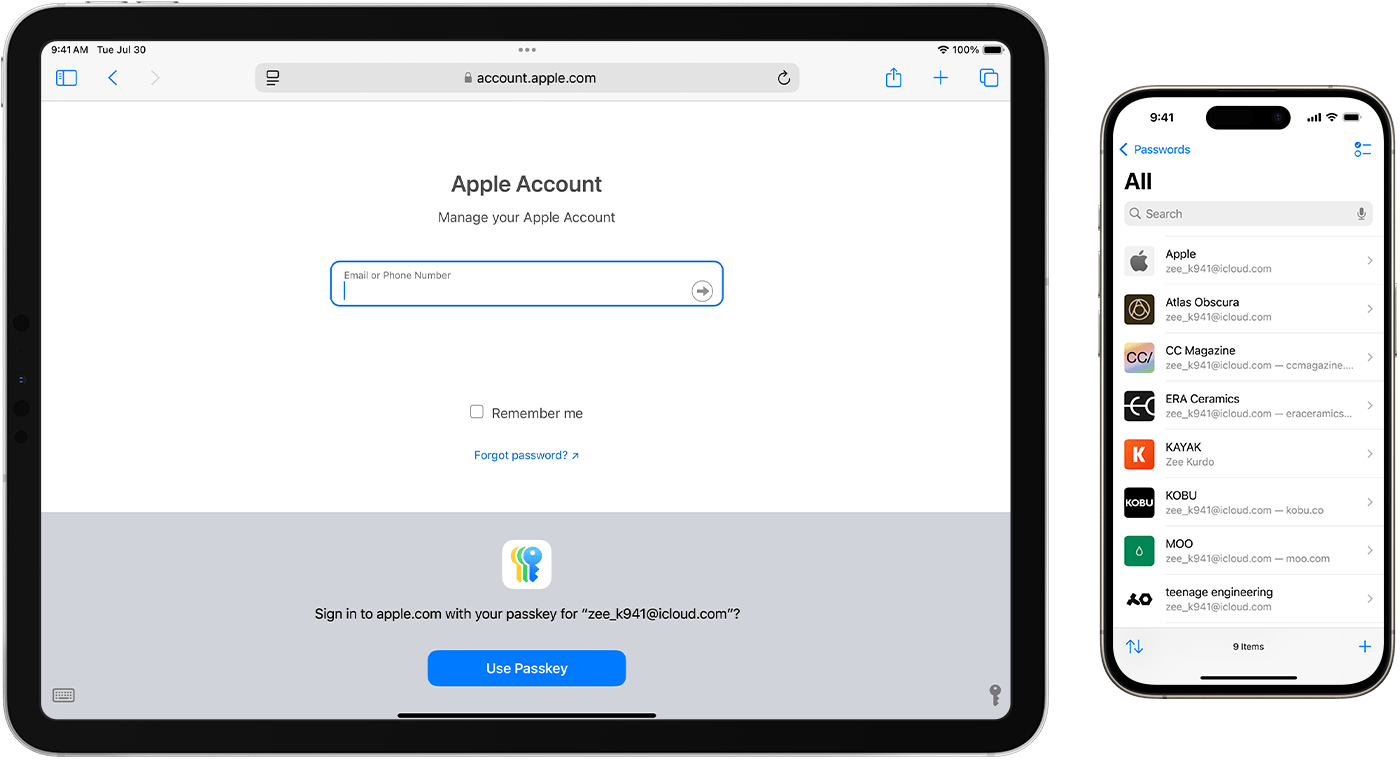
Apple password manager.
Check whether you have already been compromised.
The website haveibeenpwned.com allows you to enter your email address and see whether it has appeared in any known data breach. It is a free, legitimate service run by a respected security researcher. If your email address appears, change the passwords for all accounts that used that address. Start with your email password itself.

The website haveibeenpwned.com allows you to enter your email address and see whether it has appeared in any known data breach.
Use different email addresses for different purposes.
It is also worth using different email addresses and services for different purposes. For example, you could have:
An address for online shopping.
Your main address for banking etc.
Another you use for signing up to email newsletters and the like.
Some systems, like Apple’s iCloud+ ‘hide my email’, allow you to generate pseudo email addresses that forward mail to your main account, so the internet never has to know your real email address at all.
Two-factor authentication.
Even a strong, unique password can theoretically be stolen, for example by malicious software that records what you type.
Two-factor authentication (also called 2FA or multi-factor authentication) means a password alone is not enough to log in. You also need a second piece of evidence: typically a code sent to your phone, or generated by an app.
Think of it as a second lock on the door. Even if a criminal somehow obtains your key, they cannot get through without the second lock.
Two-Factor Authentication: Two Locks on the Door
Why a password alone is no longer enough
A password is a single lock. If a criminal has your password (whether they bought it, guessed it, or obtained it in a data breach), that one lock is all that stands between them and your account. Two-factor authentication adds a second lock. Even with your password, they cannot get in.
Without two-factor authentication
Password stolen in a breach
Criminal logs in immediately
No alert sent to you
Account compromised silently
With two-factor authentication
Password stolen in a breach
Criminal is blocked at the second check
You may receive an alert about the attempt
Account stays protected
The single most important thing you can do today
If you only make one change after reading this article, enable two-factor authentication on your primary email account. It takes five minutes. It immediately removes the most dangerous form of account takeover as a realistic threat. Your email provider (Gmail, Outlook, BT Mail, or any other) will have a setting to enable it in your account security options.
To enable two-factor authentication, go to the security settings of any account and look for the option labelled ‘Two-factor authentication’, ‘2FA’, or ‘Multi-factor authentication’.
Enable it on your email account first, then on your banking and financial accounts.
A note on text message codes.
The most common form of two-factor authentication sends a short code by text message. This is far better than nothing.
However, a type of attack called SIM swapping can sometimes allow criminals to convince a mobile network to transfer your phone number to a SIM they control, which lets them intercept these codes.
For higher-value accounts, an authenticator app such as Google Authenticator, Authy, Microsoft Authenticator and 2FAS are all more secure.
Protecting your accounts is one thing. Protecting your financial future is another.
AV Trinity is a Chartered Financial Advice firm based in Tunbridge Wells. We help individuals and families across the UK with pensions, investments, mortgages, and financial planning. If you would like to understand what good financial advice looks like at your stage of life, we would be glad to help.
Find out what we do →Passkeys: taking secure access to the next level.
Alongside passwords and two-factor authentication, there is a newer approach worth knowing about: passkeys.
If you use an iPhone, iPad, or Mac, you almost certainly already have the technology in place to use them. Many major services now support them, including Apple, Google, Amazon, and a growing number of banks and financial platforms.
A passkey replaces your password entirely.
Instead of typing a string of characters, you authenticate by using Face ID, Touch ID, or your device PIN. Your phone or computer holds a cryptographic key that proves your identity to the website without transmitting anything a criminal could intercept or steal.
From a security perspective, passkeys address several problems at once.
There is no password to be leaked in a data breach, because there is no password to steal.
There is nothing for a phishing email to capture, because you never type anything.
And the passkey is bound to the specific website it was created for, so a fake website designed to look like your bank cannot use it.
The UK’s cyber chiefs are keen on everyone migrating to passkeys, as discussed in this BBC Article.
The attack methods described earlier in this guide - credential stuffing, SIM swapping, phishing - do not work against passkeys.
Passkeys: Logging In Without a Password
How Face ID and Touch ID can replace your password entirely
Passkeys are a new way to log in to accounts that removes the password completely. Instead of typing a string of characters, you use Face ID, Touch ID, or your device PIN. If you have an iPhone or Mac, you already have everything you need to use them.
The old way versus the new way
Logging in with a password
Type your email address and password Risk: password could be stolen in a breach
Receive a text message code and type it in Risk: SIM swapping can intercept codes
Access granted Risk: phishing can capture both steps
Logging in with a passkey
Tap to sign in No password to type or remember
Confirm with Face ID, Touch ID, or device PIN Only you can do this
Access granted Nothing was typed, nothing can be stolen
Why passkeys are more secure
Nothing to steal in a breach
There is no password stored on a server. A data breach at the company cannot expose your credentials because your passkey is held on your own device, not theirs.
Phishing cannot capture it
Passkeys are bound to the specific website they were created for. A fake website designed to look like your bank simply cannot trigger your passkey. The technology refuses to work on the wrong domain.
SIM swapping does not apply
Because no code is sent by text message, criminals cannot intercept your login by convincing your mobile network to redirect your number. The second factor is your face or fingerprint, not your phone signal.
Syncs automatically across Apple devices
Apple stores passkeys in iCloud Keychain. Set one up on your iPhone and it will be available on your Mac and iPad automatically, protected by the same Face ID or Touch ID confirmation.
How to set up a passkey
Sign into the account you want to secure, then go to its security or account settings. Look for an option labelled "Passkey", "Sign in with Face ID", or "Passwordless sign-in".
Follow the prompt. Your device will ask you to confirm with Face ID, Touch ID, or your PIN. This takes less than a minute and only needs to be done once.
Done. The next time you log in, instead of typing a password, you will simply confirm with your face or fingerprint. The old password still exists as a backup but you will rarely need it.
Where passkeys are currently supported?
Apple
Apple ID, iCloud, App Store
Gmail, Google account
Amazon
Shopping and Prime accounts
PayPal
Payment account login
Support is growing. Many UK banks and financial platforms are in the process of introducing passkey login. Check your account's security settings to see if the option is available.
If you see the option, enable it
Passkeys are the most secure login method available to most people today. They are already built into every iPhone and Mac made in recent years. When a service you use offers a passkey option, it takes less than a minute to set up and removes password theft, phishing, and SIM swapping as realistic threats for that account. Enable them where you can, starting with your most important accounts.
How passkeys work on Apple devices.
On an iPhone or Mac, when you set up a passkey for a website or app, your device creates a pair of cryptographic keys.
One stays on your device, stored securely in the device’s hardware and protected by your biometrics.
The other is shared with the website.
When you log in, Face ID or Touch ID confirms it is you, and the two keys verify each other.
Nothing is typed, nothing is transmitted that could be intercepted, and nothing is stored on a server that could be breached.
Apple stores passkeys in iCloud Keychain, which means they sync automatically and securely across all your Apple devices.
If you set up a passkey on your iPhone, it will also be available on your Mac and iPad without any additional steps.
What this means in practice.
Passkeys are not yet universally supported. Many services still require traditional passwords, and you will continue to need a password manager for the accounts that have not yet adopted them.
However, the direction of travel is clear: the major technology companies, financial institutions, and standards bodies are all moving towards passkeys as the standard approach to authentication over the coming years.
If a service you use offers the option to set up a passkey, it is worth doing so. The process typically takes less than a minute: you will be prompted during login or in the account’s security settings, your device will confirm your identity with Face ID or Touch ID, and the passkey is created.
From that point, you will never need to type or remember a password for that service again.
Understanding your accounts and how they interact.
One of the most common sources of confusion, particularly for people who have been online for many years, is the difference between all the various accounts they have accumulated across different devices and services.
Your email address and your device account are not the same thing.
Many people have an email address they have held for a long time: a Hotmail, BT, Tiscali, or Yahoo address set up years ago.
They may also have a separate Apple or Google account they created when they first bought a smartphone.
These are entirely different things, and each needs to be independently secured.
Apple ID and iCloud: three things, not one (plus a note on Google accounts).
If you use an iPhone, iPad, or Mac, you have: an Apple ID. This is the account that controls your device, your app purchases, and your iCloud storage.
Your Apple ID uses an email address as its username, but that email address might be a Hotmail, a Gmail, or (confusingly) an iCloud address.
The email address is simply a label. The Apple ID is the account itself that links to iCloud.
A common source of confusion:
Your Apple ID might use your old Hotmail address as its username.
If you also used the same password for your Hotmail account, that means your Hotmail password is, in effect, the key to your Apple account, iCloud photos, and everything on your iPhone, iPad and Mac.
Apple ID, iCloud and Your Email Address: What is the Difference?
Three things Apple users often confuse, and why it matters
Many iPhone and Mac users are unsure what Apple ID actually is, how it relates to iCloud, and whether it is the same as their email account. These are three separate things, with three separate passwords. Getting them confused creates real security risks.
Your email account
Your main email inbox, where messages arrive. Provided by BT, Gmail, Outlook, Yahoo, or similar.
- Password resets from banks and services come here
- The "master key" to all your other accounts
- Your email address is your username for most services
- This is the account most critical to protect
Your Apple ID
Your account with Apple. Used to access Apple's services and to set up any iPhone or Mac.
- Used to download apps from the App Store
- Required to make Apple Pay payments
- Links your Apple devices together
- May use an old email address as its username
iCloud
Apple's storage and backup service. Part of your Apple ID, not a separate account, but a separate concern.
- Backs up your iPhone photos, contacts and settings
- Stores files from your Mac and iPad
- Syncs data across your Apple devices
- If your Apple ID is compromised, so is this
Where people commonly get confused
Your Apple ID username might be your old Hotmail or Yahoo address, even if you no longer use that account for email. That old account may still receive Apple security codes.
If you used the same password for both your Apple ID and your email account, a breach of one immediately threatens the other.
When Apple asks you to verify your identity, the verification email may go to the address linked to your Apple ID, which might not be the email address you check every day.
iCloud backups mean your phone data exists in two places. Securing your device is not enough if your iCloud account is not also properly protected.
What to check on your Apple account
Sign into appleid.apple.com and check which email address is linked to your Apple ID. Make sure that email account is one you actively use and can access. Confirm that two-factor authentication is enabled on your Apple ID (it almost certainly is on a modern iPhone, but worth verifying). And ensure your Apple ID password is unique: not shared with any other account, including your email.
If a criminal gains access to an Apple ID, they can access everything stored in iCloud; which means your photos, contacts, messages, and documents, all without ever physically touching the device.
The same can be said for Google accounts. You may use a Google email address as your username, but it may also use your main email address from another provider.
This can be quite confusing, and as digital services have grown over the years, the way you have set things up can complicate matters.
Your Online Accounts: The Types of Account
Common account types
Most people have accumulated several distinct types of online account over the years, often without fully noticing. Each is separate, each needs its own strong password, and each controls a different part of your digital life.
The four main account types
Email account
Most critical to protect
ExamplesGmail, Hotmail, Outlook, BT Mail, Yahoo, Tiscali, iCloud Mail
ControlsSending and receiving email. Also the master key: password resets for every other account arrive here.
Red alert: secure this firstApple ID
iPhone, iPad and Mac users
ExamplesUses any email address as its username. Often set up when you first bought an Apple device.
ControlsYour Apple devices, App Store, Apple Pay, iCloud photos, contacts, messages and documents.
Amber alert: secure this weekGoogle account
Android and Chrome users
ExamplesGmail address, or any email address used to sign into Google services.
ControlsAndroid phone, Google Photos, Google Drive, Chrome saved passwords, Google Pay.
Amber alert: secure this weekMicrosoft account
Windows PC users
ExamplesOutlook.com, Hotmail, or Live address. Often the same account as an older email address.
ControlsWindows PC login, OneDrive storage, Microsoft 365 (Word, Excel, Outlook).
Amber alert: secure this weekA typical iPhone user's account picture
How accounts accumulated over the years can become unexpectedly connected
yourname@hotmail.com
Set up in 2004. Used for everything: banking, shopping, correspondence.
Password reused elsewhereyourname@hotmail.com
Created when buying the first iPhone in 2011. Username is the same Hotmail address.
Same password as Hotmail Controls all photos and iCloudPart of the Apple ID above
Holds all photos, contacts, messages and device backups.
Accessible to anyone with Apple ID accessyourname@gmail.com
Set up in 2018 for work correspondence. Different password.
Separate and secureThe Hotmail address and Apple ID share both the same username and the same password. A data breach involving the Hotmail account would give a criminal immediate access to the Apple ID, iCloud photos, contacts, and messages, without any additional effort. This is easily missed because the two feel like separate accounts.
Three things worth checking today
First, find out which email address is linked to your Apple ID: go to Settings on your iPhone, tap your name at the top, and look at the email address shown. Second, confirm that the password for your Apple ID is different from the password for that email account. Third, make sure two-factor authentication is enabled on both. These three steps close the most common vulnerability that connects older email accounts to Apple devices.
What lives in the cloud, and what lives on your device?
’The cloud’ simply means a server owned by Apple, Google, Microsoft, or another company: a computer in a data centre that stores your information.
When your phone backs up automatically overnight, it is sending a copy of your photos, contacts, and messages to these servers.
This matters for two reasons:
If a criminal gains access to your Apple ID or Google Account, they may be able to access everything backed up to the cloud without ever touching your physical device.
If your device is infected by malicious software that encrypts or deletes your files, that damage can be automatically synchronised to the cloud backup, overwriting the safe copy.
Securing your cloud accounts is therefore just as important as keeping your physical device safe.
Your accounts are often on all your devices and synchronised via the cloud.
To further complicate matters, there is a common misconception about the separation of different devices.
Your laptop will likely be signed-in to various email and software accounts, as will your phone – there is no distinction.
They all pull information for your accounts down and send it back up again. This synchronises your data across your devices and there is very little in the way of data that lives on a single device these days compared with data in the cloud.
If your accounts are compromised on one device, they will be compromised on others.
Your Devices and the Cloud
Where your data actually lives
Every device you own connects automatically to one or more cloud services. Your data is not stored only on your hardware. It lives on servers run by Apple, Google, Microsoft and others -- and each of those accounts is a separate security responsibility.
Scroll sideways to see the full diagram
iCloud
Photos, Email, Files,
Backups, Music, Notes
Drive, Gmail, Photos,
Calendar, Contacts
Microsoft
OneDrive, Outlook Email,
Device Backups, Office
Other Storage
Dropbox, Box, pCloud,
Amazon Drive
Email Hosts
BT, Sky, Yahoo,
Tiscali, Virgin
Streaming
Netflix, Spotify,
Amazon, Disney+
iPhone
Apple
iPad
Apple
MacBook
Apple
Windows
Microsoft
Android
Where things get complicated
Photos can back up to two clouds at once
iPhone users who have installed the Google Photos app often back up to both iCloud and Google simultaneously without realising it. Two companies hold copies.
Documents scatter across multiple storage systems
A MacBook saves to iCloud Drive, a Windows PC to OneDrive, shared files to Dropbox. Three systems with no connection between them, each carrying its own security risk.
Your email is not tied to your device
A BT, Sky or Yahoo inbox can be opened on any device, anywhere. Securing your iPhone does nothing to protect the email account itself.
Streaming accounts are completely separate
Spotify, Netflix and Amazon Music each have their own independent logins. They are not part of your Apple, Google or Microsoft account.
Wiping a device does not delete your cloud data
If your phone is reset or stolen, your photos and contacts remain in iCloud or Google. The data lives on the server. Losing the device changes nothing for an attacker who has your password.
Each service needs securing independently
Locking down iCloud does not protect Google. Changing your BT email password does nothing for Dropbox. Every line in that diagram above is a separate account to secure.
Count your accounts, then secure each one
Most people are connected to six or more cloud services across their devices. Each is a separate account, each holds personal data, and each needs a strong unique password and two-factor authentication. A password manager makes this practical: one master password gives you a different strong password for every service you use, without having to remember any of them.
Found this useful?
Once a month, we send our latest articles on pensions, investments, mortgages, protection, estate planning and more, along with a couple you might have missed. Practical reading for anyone taking their finances seriously.
Join our readers →Malware: what it is and what it does.
Malware is malicious software installed on a device without the owner’s knowledge.
It can arrive via email attachments, links to fraudulent websites, downloads from unofficial sources, or, in more targeted attacks, through vulnerabilities in outdated software.
Once installed, malware can:
Record every key you press, including passwords, and transmit them remotely to criminals.
Take screenshots of your screen and send them without your knowledge.
Give criminals full remote access to your device, allowing them to use it as if they were sitting in front of it.
Encrypt all your files and demand a ransom payment to restore access (this is called ransomware).
Use your device to send spam or attack others, without your knowledge.
Is Apple safer than Android and Windows?
Apple devices (iPhones, iPads, and Macs) have historically offered a more controlled security environment than Android or Windows devices. Apple reviews every app before it appears in the App Store, and the operating system is designed to limit what applications can access. This reduces the risk, but it does not eliminate it.
More recently, the EU has declared the App Store as a monopoly and is forcing Apple to open up their devices to other, third party app stores - what this will mean for digital security remains to be seen.
Android is a more open system, which creates greater exposure, particularly if apps are installed from sources other than the official Google Play Store.
Windows computers remain the most commonly targeted platform, primarily because of how widely they are used.
Whatever device you use, the most important protections are the same:
Keep your operating system and all apps updated, as updates frequently fix known security weaknesses that criminals actively exploit.
Only download apps from official stores: the Apple App Store or Google Play.
Do not open email attachments you were not expecting, even from people you know.
Do not click links in emails or text messages unless you are certain of the source.
If you are offered software to download by someone who has called you, do not proceed.
How to spot online scams and the different tactics they use.
Phishing emails
A phishing email is designed to trick you into clicking a link, opening an attachment, or entering your details on a fake website.
They are increasingly convincing. Many now use correct names, accurate branding, and personal details obtained from earlier breaches.
Warning signs to look for:
An unexpected request to ‘verify’, ‘confirm’, or ‘update’ your account details.
Urgency: ‘Your account will be suspended within 24 hours unless you act now’.
The sender’s email address contains a subtle error: a letter swapped, a character added, or an unusual domain name.
Links that, when you hover your cursor over them without clicking, show a different web address to what is displayed.
Attachments you were not expecting, particularly documents, spreadsheets, or compressed files.
Investment recommendations arriving out of the blue by email, especially those promising unusually high or guaranteed returns.
Checking the sender’s email address.
The name displayed in an email, for example ‘Jane Thompson’ or ‘Barclays Bank’, is easily faked and means nothing on its own.
What matters is the actual email address. You can see it by clicking or tapping on the sender’s name. Look carefully at the domain: the part after the @ symbol. info@avtrinity.com is genuine. info@avtrlnity.com is not.
In the fraudulent version, the letter ‘i’ in Trinity has been replaced with the letter ‘l’. It is very easy to miss.
Spot the Difference: Genuine vs Fake Sender Address
How a fraudulent email can look almost identical to a real one
Criminals do not need to hack an email system to send convincing fraudulent emails. They simply register a domain name that looks almost identical to the real one and send from there. The difference is often a single letter, easy to miss at a glance.
Other warning signs to watch for
The domain uses lookalike characters
The letter 'l' substituted for 'i'. A zero (0) in place of the letter 'O'. An 'rn' combination that resembles an 'm'. These are designed to deceive at a glance, particularly in sans-serif email fonts.
The domain has extra words or hyphens
Fraudulent domains often include the real company name but with additions: "avtrinity-secure.com", "avtrinity-client.com", or "mail.avtrinity-online.com". The real company name appears, but it is not the real domain.
The display name matches but the address does not
Email clients often show the sender's display name more prominently than the address. An email can show "Louise Morris, AV Trinity" as the sender name while the actual address is something entirely different. Always check the full address, not just the name.
Urgency, unusual requests, or investment recommendations by email
Phrases like "act quickly", "invest as much as you can" or unsolicited recommendations are red flags regardless of who the sender appears to be. Legitimate financial advisers do not make investment recommendations cold by email.
How to check a sender address properly
1On a computer: hover your mouse over the sender name. The full email address should appear in a tooltip or the header area.
2On a phone: tap the sender name at the top of the email. The full address is usually shown below the display name.
3Look specifically at the domain (everything after the @ symbol). Compare it letter by letter with what you expect.
4If in any doubt, do not click any links or open any attachments. Contact the organisation directly using a number or address you find independently.
When in doubt, pick up the phone
If you receive an unexpected email from a financial adviser, bank, or professional firm, particularly one that asks you to click a link, open an attachment, or take financial action, call them directly on a number you already have or find independently on their website. Do not use contact details provided in the suspect email itself.
Phone scams
Once criminals have read your email correspondence, they know who you trust. Expect calls from people claiming to be your bank, HMRC, your financial adviser, or a utility company.
They may sound professional and may know personal details, because they have read your emails.
A genuine bank or regulated financial firm will never:
Ask for your full password or PIN over the telephone.
Ask you to transfer money to a ‘safe account’ to protect you from fraud.
Ask you to download software onto your computer.
Pressure you to act immediately without time to think or verify.
If you have any doubt, end the call, wait several minutes, and call back using a number you find yourself from the organisation’s official website, not a number given to you during the call.
Text message scams.
Text messages work the same way. Fraudulent texts frequently claim to be from a delivery company, your bank, or HMRC, and contain a link to click.
Treat any unexpected text message with a link as suspicious, regardless of how convincing it looks. When in doubt, go directly to the organisation’s website by typing the address yourself.
Know what to look for
What a Scam Looks Like on Your Device
Fraud arrives by phone call, text message, and email. All three use the same tactics: urgency, authority, and pressure to act without thinking. These examples show exactly what each one looks like, and where to spot the telltale signs.
Pay now: royalmai1-parcels.co.uk/pay2
Failure to pay within 24 hours will result in the parcel being returned to sender.3
Dear Customer,
We have detected unusual activity on your Lloyds Bank account. Your online access has been temporarily suspended.
Verify your identity within 24 hours or your account will be permanently closed.3
Your action checklist.
The steps below are listed in priority order. If you are unsure where to begin, start at the top.
Priority 1: Do this as soon as possible.
Change your email password to something long, unique, and random. Use a password manager to generate it, or choose a passphrase of four or more unrelated words of at least sixteen characters total with no personal connection.
Install a password manager and begin creating unique passwords for your most important accounts. Apple’s own passwords app is https://support.apple.com/en-us/120758 and Google’s is https://passwords.google/
Enable two-factor authentication on your email account. Go to your email provider’s security settings and switch it on. Use an authenticator app rather than text message if the option is available.
Visit haveibeenpwned.com and enter your email address. If it appears in any known breach, change the passwords for all accounts that used that address.
Priority 2: This week.
Check your email account’s security settings for any recovery email addresses or backup phone numbers you do not recognise. Remove anything unfamiliar immediately.
Check your email account’s inbox rules for any automatic forwarding or redirect rules you did not create.
Priority 3: This month.
Work through your other online accounts and update each to a unique password stored in your password manager.
Make sure all your devices are running the latest software updates. Phones, tablets, and computers all need to be kept current.
Review what is stored in your Apple ID or Google Account, and confirm those accounts are secured with strong passwords and two-factor authentication.
Consider whether a long-standing email address that may have been compromised in past breaches should be replaced with a fresh address, set up securely from the start.
A final note.
The client at the centre of this story was not harmed financially. They picked up the phone rather than clicking a link. That single instinct, to verify directly before acting, made all the difference.
No legitimate financial adviser, bank, or regulated firm will ever pressure you into making a financial decision by email alone, or send you an unsolicited investment recommendation asking you to respond immediately. If you ever receive an email making a financial recommendation or requesting financial action that has not been discussed with you in person or over the phone first, please call us before doing anything else.
We are always happy to verify whether a communication is genuine. It takes thirty seconds, and it may matter a great deal.
What's next?
Taking steps to protect your online accounts is a sensible use of an afternoon. Taking steps to protect your financial future takes a little longer, but the consequences of leaving it unattended are considerably more significant.
AV Trinity is a Chartered Financial Advice firm based in Tunbridge Wells. We offer a free initial consultation to anyone who wants to understand their financial position and explore what good advice looks like for their circumstances.
We work with clients across the UK. Locally, we advise clients throughout Kent and East Sussex, including Tunbridge Wells, Sevenoaks, Maidstone, Tonbridge, Crowborough and Eastbourne.
This article is for general information only and does not constitute personal financial advice or a recommendation. The suitability of any protection or financial arrangement depends on individual circumstances, objectives and the current regulatory environment. Tax treatment and protection rules can change over time, and their effect will depend on personal circumstances. Your home may be repossessed if you do not keep up repayments on your mortgage.